Manage delivery settings for your own delivery staff in Uber Eats Manager
How to see your delivery settings
Step 1: Go to Uber Eats Manager
Step 2: Select ‘Delivery Settings‘ OR select ‘Settings‘ and then under ‘General’ select ‘Delivery’
Why add multiple delivery areas?
👥 Ability to target more potential customers
🕒 Expected delivery time will be different
🚗 Cost of delivering changes
How to change your delivery radius
Step 1: Go to the ‘Delivery Settings‘ section in Uber Eats Manager
Step 2: Set the radius you want to cover for delivery
Step 3: Set a delivery fee and a minimum order size
Step 4: Add a fulfilment time for how long you expect the delivery to take from when you receive the order
Step 5: Add another delivery radius by selecting ‘Add another range’, if you wish to
Step 6: Click ‘Save’ in the top right corner
How to set a custom delivery area
There are two types of custom delivery areas you can use: postal codes and free shape zones. You can choose to use both or neither.
*You can set multiple delivery areas with different fees. If areas overlap, customers will pay the lowest fee.
Postal Codes
Step 1: Go to the ‘Delivery Settings‘ section in Uber Eats Manager
Step 2: Select ‘Create Area’
Step 3: Select ‘Postal Code’ from the ‘Area Type’ drop down menu
Step 4: Enter the postal code(s) you want to include in your delivery zone
Step 5: Set a delivery fee and minimum order size
Step 6: Add a fulfilment time for how long you expect the delivery to take from when you receive the order
Step 7: Click ‘Save’ in the top right corner
Free Shape Zone
Step 1: Go to the ‘Delivery Settings‘ section in Uber Eats Manager
Step 2: Select ‘Create Area’
Step 3: Select ‘Custom’ from the ‘Area Type’ drop down menu
Step 4: Draw a free shape zone; or create maps, download it as KML and upload it on the top right of the screen
Step 5: Set a delivery fee and minimum order size
Step 6: Add a fulfilment time for how long you expect the delivery to take from when you receive the order
Step 7: Click ‘Save’ in the top right corner
Let Uber Eats help with your deliveries with the tap of a button
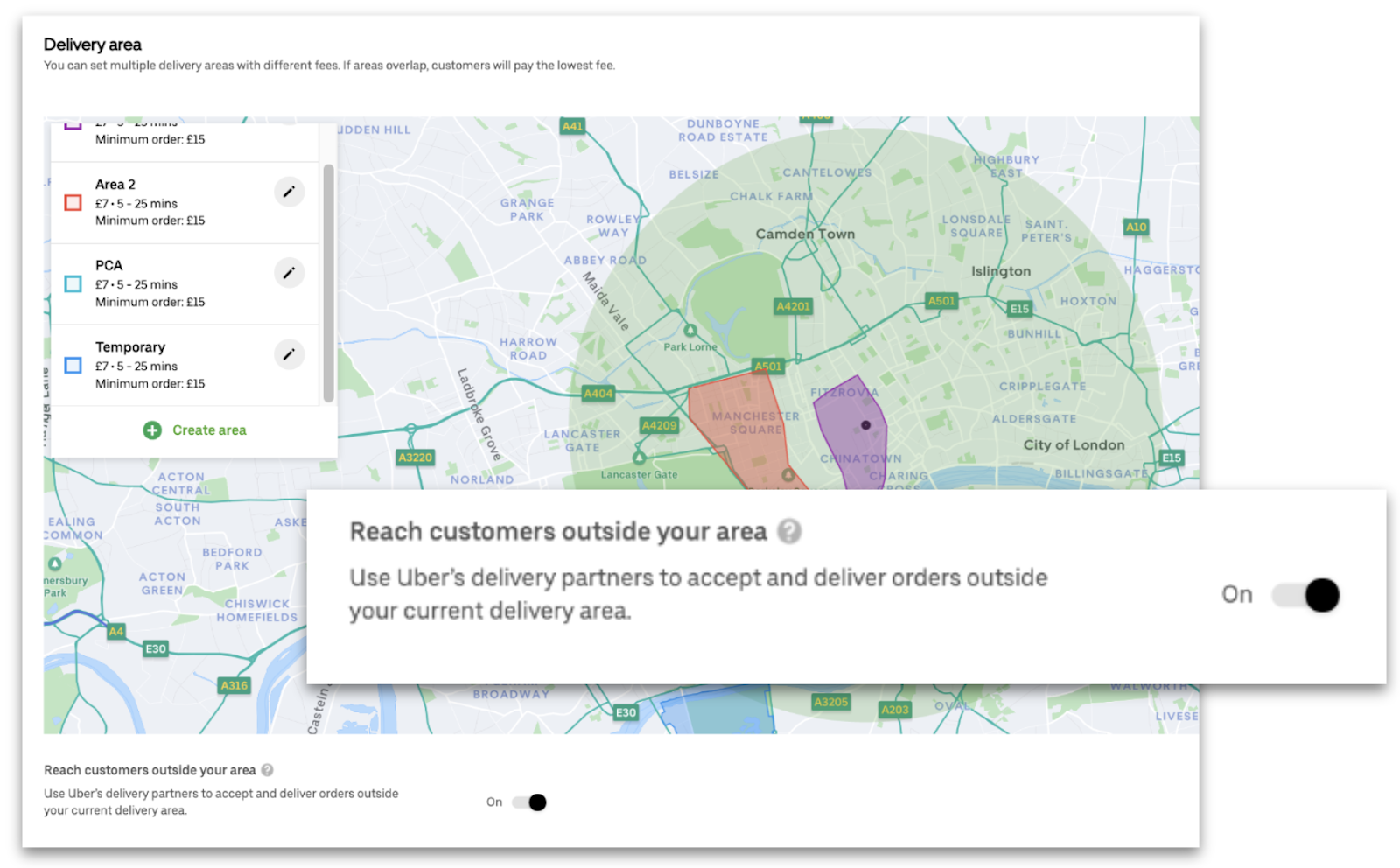
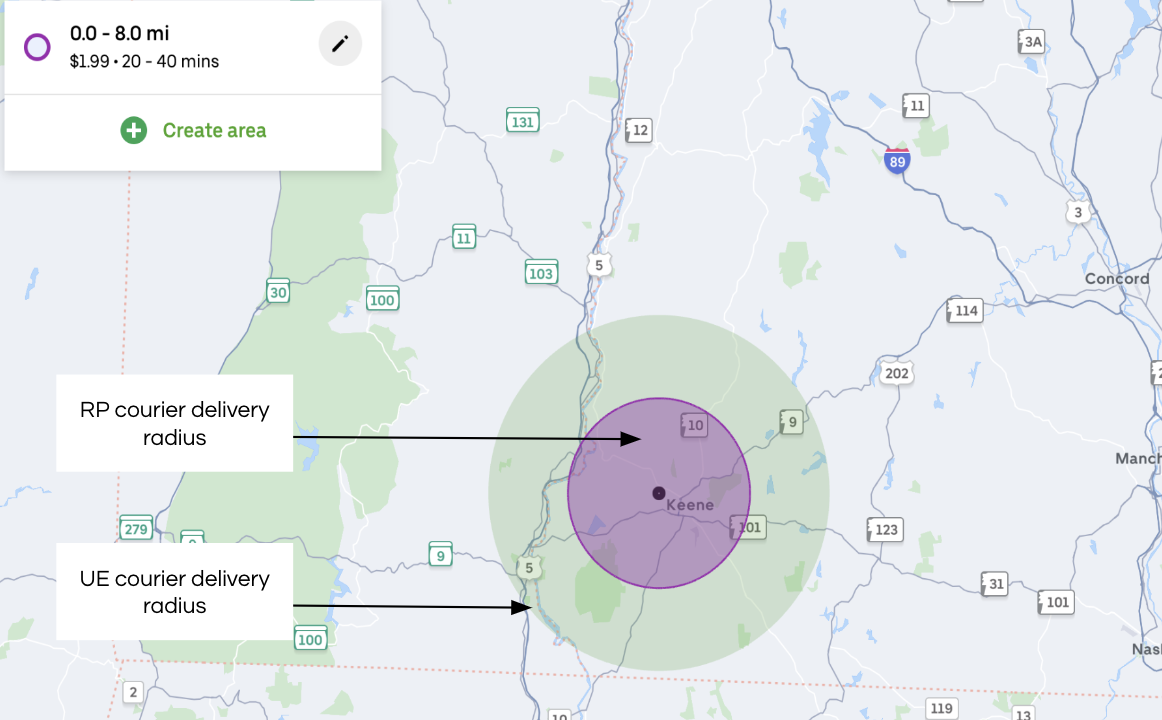
Whether you have higher than expected volume or want to expand your delivery reach, you can turn on our fallback option in Uber Eats Manager.
This added support lets you maximise your reach and remain flexible. Get the delivery help you need with just the tap of a button.
Trust in Uber Eats delivery network: 99.5% of all deliveries on Uber Eats are successfully completed and Uber Eats has regional monitoring to manage supply and demand.
Uber