Information about taking trips
Once you’re ready to drive, we can show you at a glance how to accept and navigate your first trip.
How to start receiving ride requests
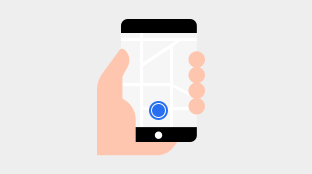
1. When you’re ready to drive, just tap GO. The app will start looking for requests from riders near you.
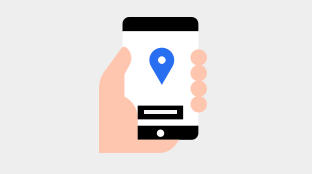
2. You’ll see the destination upfront, so you’ll know where a trip will take you. If the details look good, tap to accept the trip.
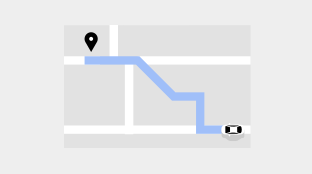
3. You can navigate to your rider any way you choose. The Driver app offers navigation as an option.
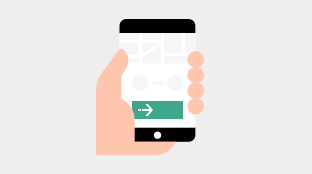
4. Once you’ve picked up a rider, slide the start trip button. You can navigate to their destination however you or your rider want.
5. When you arrive at the destination, slide the complete trip button.
Tips
Here are a few other tips offered by drivers and riders that you might find helpful.
Using the app to contact a rider
Accepted a trip but can’t find your rider? The app lets you call or send them a text.
Doing a quick name check
Drivers often greet riders by their rider’s name to avoid picking up the wrong person.
Tapping the map
Whenever you want to see an overview of the entire route, you can tap the map to zoom out.
Navigating with your favourite app
Your Driver app comes with a built-in map and directions, but you can also use other navigation apps while driving with Uber.
To choose your preferred navigation app, tap the menu icon in the top left corner. Then tap Account, App Settings, and Navigation.
Frequently asked questions
What if my rider is behaving unsafely or being rude?
You can report issues with your rider by tapping Help in the menu section, then Trip Issues and Adjustments.
How do cancellations work?
You can cancel a trip before or after a pickup. The best way to avoid taking trips you don’t want is to go offline when you’re no longer available.
How do I stop receiving ride requests when I’ve finished driving?
Just tap Go Offline on the map when you don’t want to get ride requests anymore.
What if I get a request that’s too far for me to drive?
You might sometimes get a ride request with a destination that’s a fair way off. You’ll see “Long trip” with an estimated trip time at the bottom of your screen when one of these requests comes through.
If a trip like this is further than you’d like to drive, you can always say no. The request will automatically be sent to another driver nearby.
Drive your way in the app

Drive your way in the app
The information provided on this web page is intended for informational purposes only and may not be applicable in your country, region or city. It is subject to change and may be updated without notice.
About
Explore
Opportunities by city