If you are planning to temporarily close your store, or modify your store hours, then plan ahead and set up your holiday hours today so you can enjoy a break without distractions.
In just a few simple steps you’ll no longer have to worry about receiving orders you cannot fulfil, or disappointing customers who attempt to order from your store.
How do I set up holiday hours?
*If your restaurant is POS integrated, all store hour information is stored directly in your POS system. For help changing your store hours, please reach out to your restaurant’s POS customer service contact.*
You can set up your holiday hours on Uber Eats Manager on the web or on the newly revamped app.
Set holiday hours from the Uber Eats Manager App
- Scroll down to ‘Store hours’ and click the ‘Add’ button to set or adjust holiday hours for that store.
- In the app, click on ‘More’ in the bottom right corner.
- Select ‘Stores’ and choose the store that you want to set holiday hours for.
Set holiday hours from the Uber Eats Manager website
Step 1: Go to Uber Eats Manager
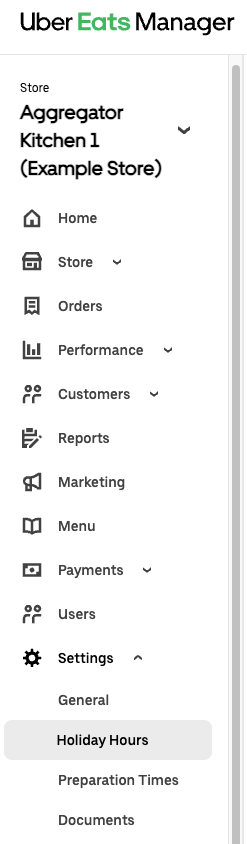
Step 2: Click on “Holiday Hours” under “Settings”
Step 3: Select “Add More”

Step 4: Select the date and modified store hours to apply to your store. When completed, select “Save” to confirm your selection

Step 5: Select “Add More” to add additional temporary store hour changes

In just a few simple steps you’ll no longer have to worry about receiving orders you cannot fulfil, or disappointing customers who attempt to order from your store.
Uber