June 8, 2017
Your guide to using the Uber app
UE
Uber Editor
The Uber app is designed for a fast & smart booking experience as well as tailored for you. It also packs some very cool features in it.
Find a download of some of these features below.

Request a ride
- Your Uber app starts with ‘Where to’- your destination
- Scroll through the product selector panel through simple left and right swipes & pick the product best suited to your needs
- Incase you want to change your pickup point from default- current location, do it by clicking on the pick-up flag on the map
- You can then just move the map to drop the pin exactly at the point where you wish to be picked
- Done. Your Uber will find a ride closest to you and you are good to go

Choose amongst various products
- Once you have entered your destination in the ‘Where to’ search bar, choose your preferred product from the panel below
- You can swipe left to navigate from ‘Economy’ to ‘Premium’
- To know more about any product, you can just click on the product icon

Schedule a ride
- Tap the icon next to the ‘Where to’ search bar
- Set your pickup window: date & time
- Choose your pickup and destination points
- Choose the product of your choice
- Hit ‘Schedule’
- Confirm the details of the trip and press ‘Done’
- You can edit the details of the trip by going to ‘Upcoming’ on the ‘Your trips’ section

Apply a promo
- Go to the main menu of the app
- Click on ‘Payment’
- On the ‘Promotions’ section, click on ‘Add Promo/Gift Code’
- Type the code (it is not case-sensitive)
- Your promo would automatically apply when you take a relevant trip
- To check, click on ‘Promotions’
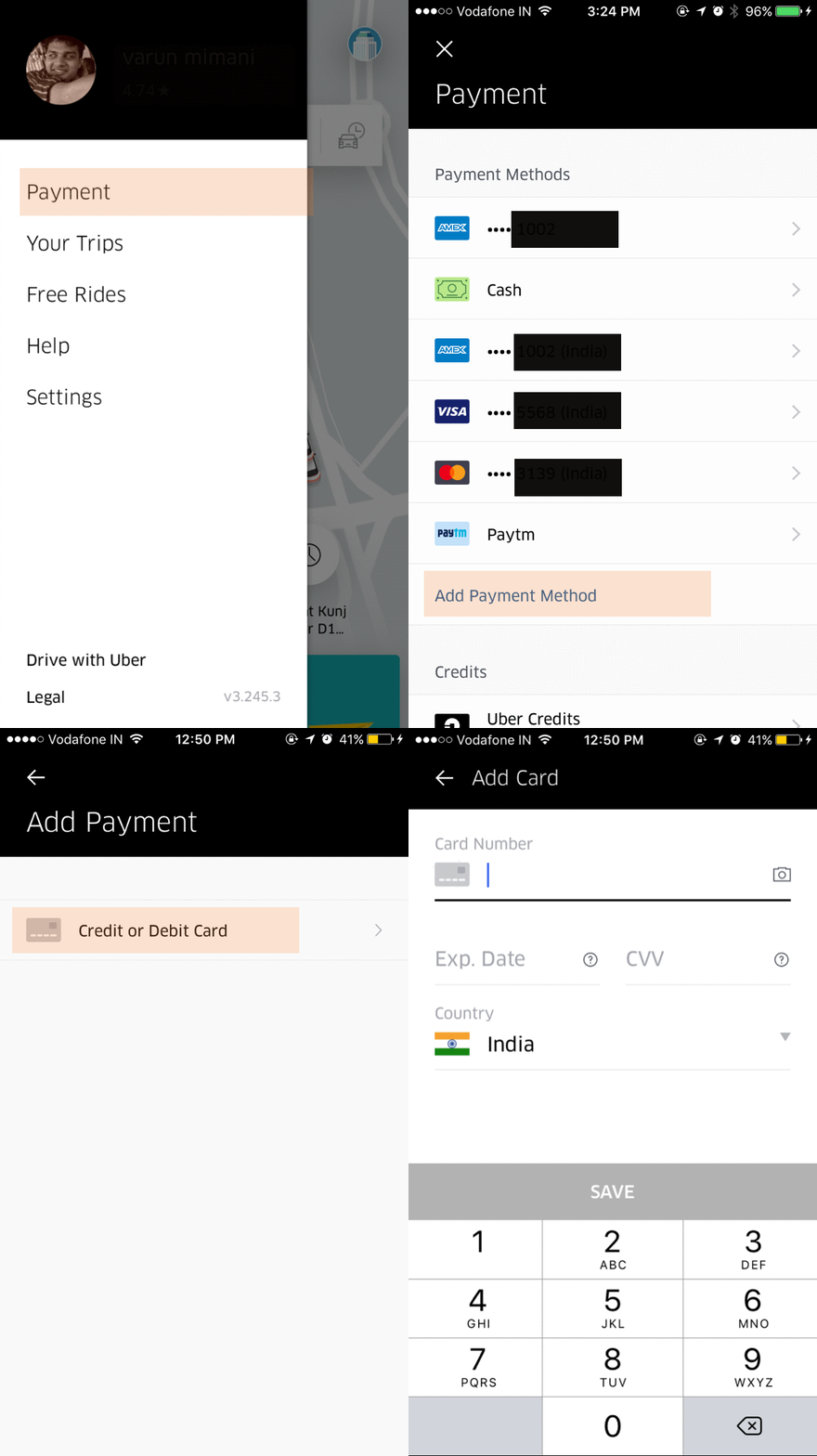
Add payment method
- On Uber, you can choose to pay with any payment mode
- Go to ‘Payment’ on the main menu
- Add ‘Payment method’
- Choose Credit or Debit card or a mobile wallet such as Paytm
- It’s easy to switch your payment method from the main menu or even while you are requesting your ride

Give the gift of Uber to friends & family
- It’s easy to spread the Uber love with your address book
- On the main menu, go to ‘Free Rides’
- Connect contacts & choose your invitees
- Just send the message & earn free rides along with your invitees

Scroll through the in-app feed
- The new app also comes with a feed that is designed just for you
- Scroll up to find all the exclusive content

Raise an in-app ticket
- For any issue on your trip, you can easily raise an in-app ticket
- Go to ‘Your Trips’ on the main menu
- Click on the concerned trip from the history
- Choose the type of issue you are facing under ‘Help’
- You will get a resolution shortly after
Other cool features you ask?
- Want to keep others in the loop? You can ‘share status’ next time you may be running late to a meeting or you want to keep your family informed
- You can raise an in-app ticket if you have forgotten something or ‘lost an item’ in the car
- If you think you have been ‘charged a cancellation fee’ for a reason beyond your control, you can raise an in-app ticket to claim it back
Check out more ways to get the most out of your Uber experience on the app.
Category
Products
Written by
UE
Uber Editor
Related Articles
6 articles