

What is Uber?
Uber is a platform that connects riders to drivers through a simple, user-friendly mobile application. Whether it’s a ride to a doctor’s appointment, a social gathering, or the grocery store, Uber provides a flexible and stress-free solution.
What are Uber vouchers?
Uber Vouchers is a feature that gives transit agencies, universities, and colleges the ability to subsidize Uber rides for customers. When you receive an Uber voucher from an eligible transit agency program, it’s added to your Uber account. You can then use the voucher to pay for eligible services. Typically, the voucher will cover the cost of your trip up to a certain amount. If the cost exceeds the voucher’s value, the difference is charged to your default payment method on the Uber app.
Download the Uber app and set up your account
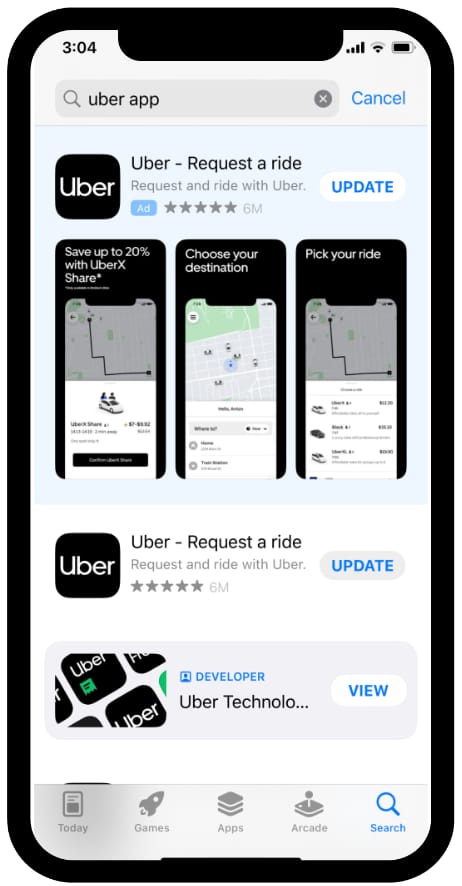
We encourage riders with smartphones to download the Uber app for the most seamless Uber experience.
- Go to the App Store or Google Play on your smartphone
- Download the Uber app
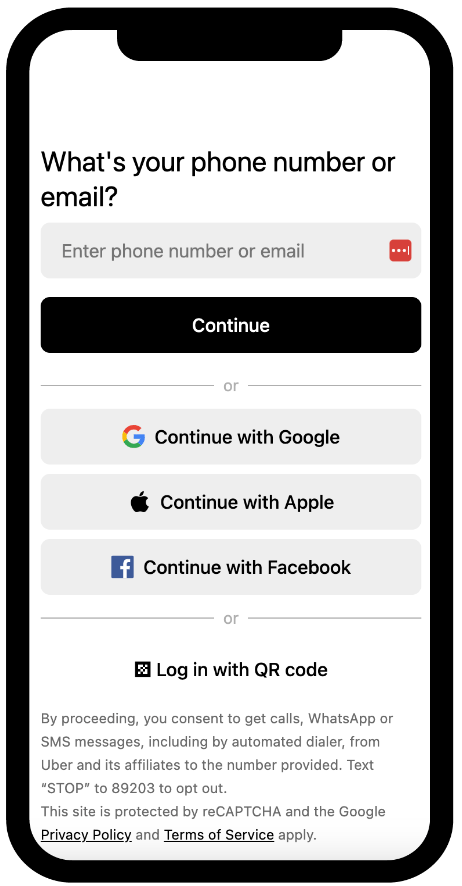
- Create your Uber account by providing the necessary details and following the app prompts
- Set a strong password
- Link a payment method
Note: Please make sure the phone number or email address (phone number is preferred) that you use to create your Uber account matches the contact information you provided to your transit agency program administrator. For more information about account creation, go to this article.
Receiving Uber vouchers
Transit agency and higher education program administrators will use the email address or phone number that you provided to them to add vouchers to your Uber account.
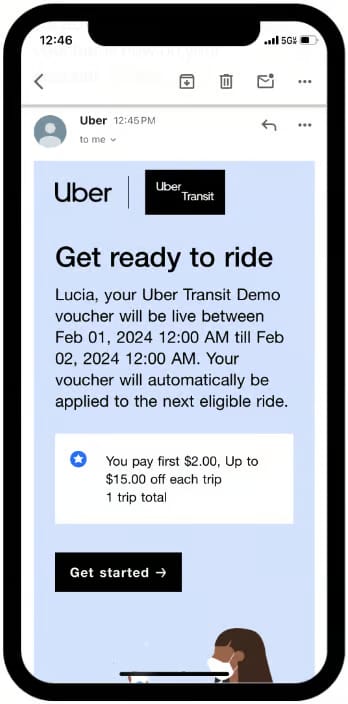
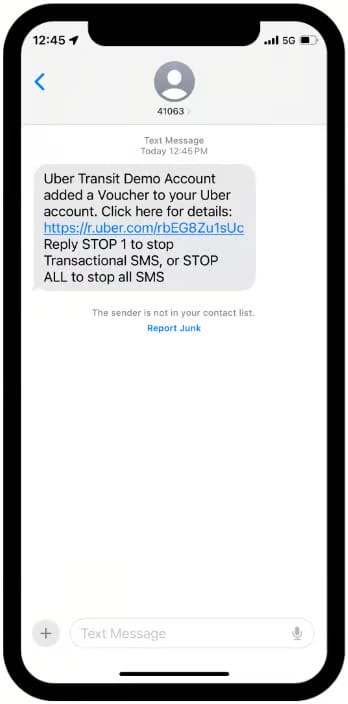
- Check your email or text messages for an Uber voucher notification
- Choose Get started from the email or select the link in your text to accept your voucher
Checking your voucher balance
Before you request your first Uber trip, it’s a good idea to check that you’ve received the correct voucher for your transit agency or university’s subsidized program in your Uber Wallet. Follow the steps below to view the voucher and its balance.
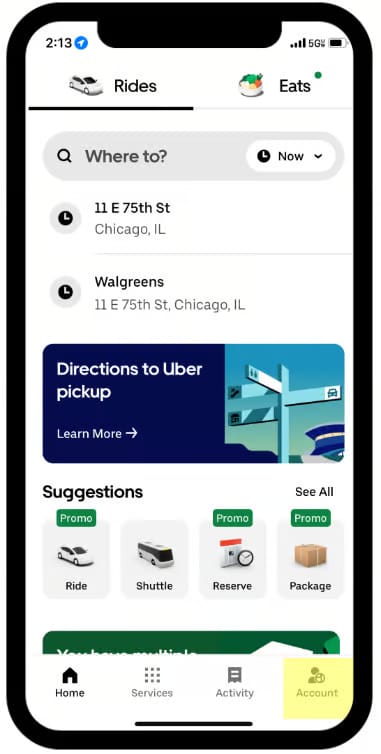
- Open the Uber app and select Account in the bottom right corner.
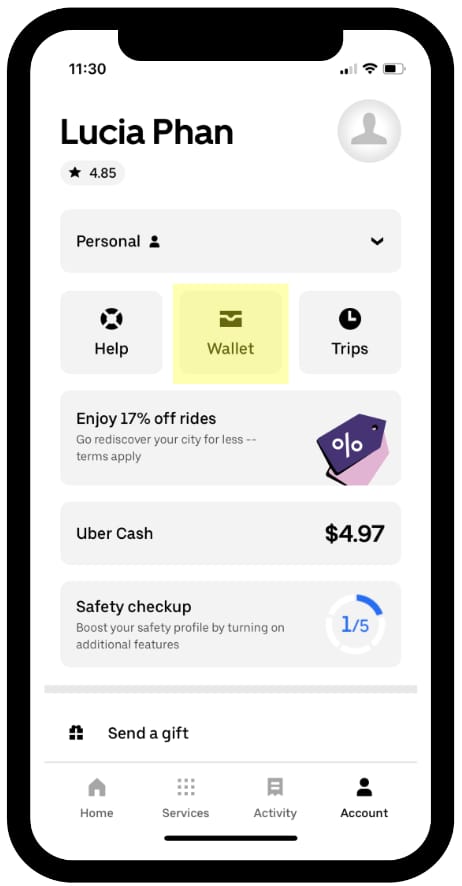
- Choose Wallet.
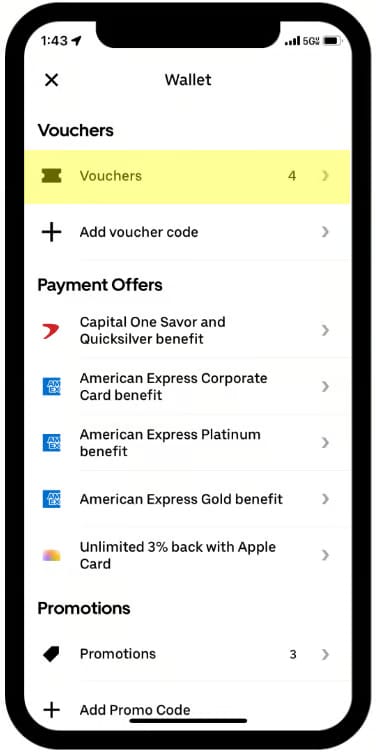
- Scroll down and select Vouchers.
- Confirm that the voucher is available.
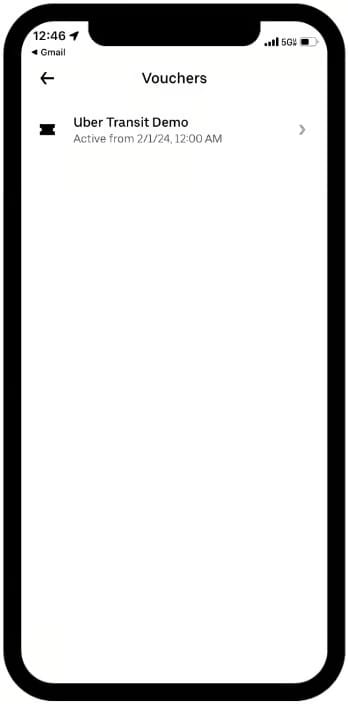
- Go to the voucher to review the program parameters and your trip balance.

Using your voucher
To apply your voucher to an Uber ride, follow the steps below.
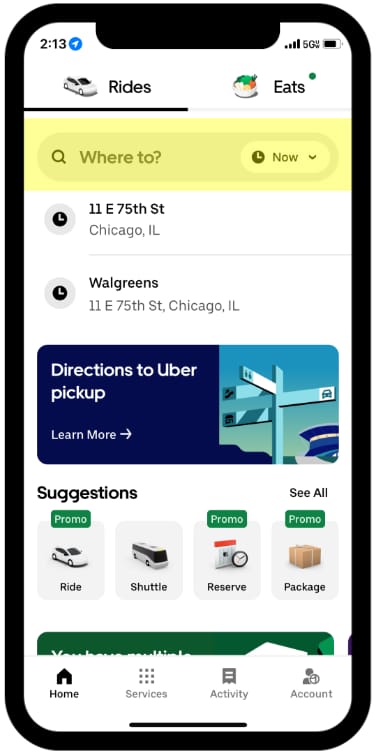
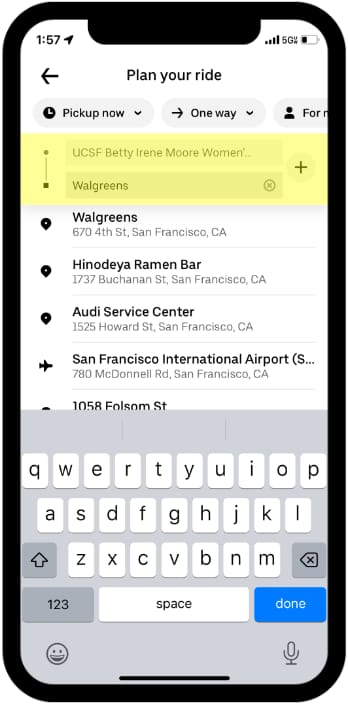
- Open the Uber app and enter your destination address in the “Where to?” field.
- Review your pickup and dropoff locations to make sure they’re correct.
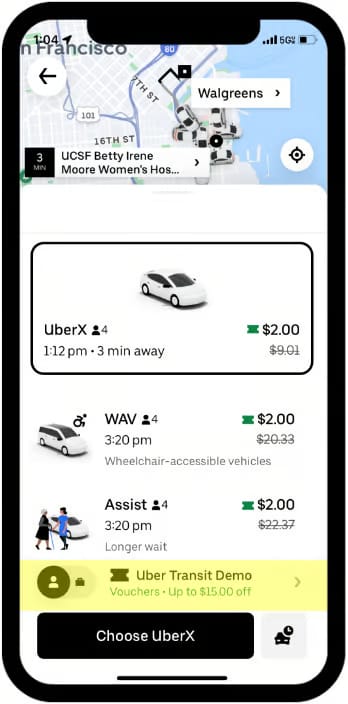
- Select the Uber ride option that fits your needs.
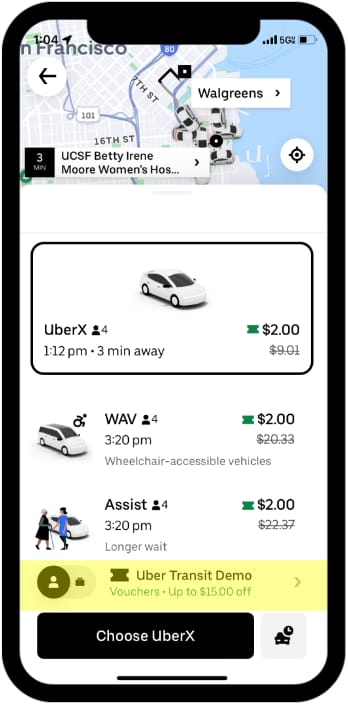
- Before selecting Choose, make sure your voucher is valid for the trip. If the voucher is valid, you’ll see a strikethrough of the regular market price for the Uber trip and the voucher in the payment section of the screen.
Note: If the trip does not meet the program criteria, the app will show the market price for the Uber trip since the voucher did not apply.
- Select Choose to confirm your ride option.
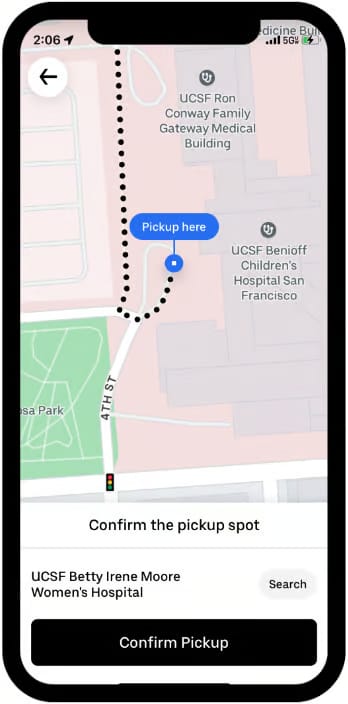
- Select Confirm pickup to confirm your pickup location.
Awaiting your driver
While your driver is on the way, follow these best practices:
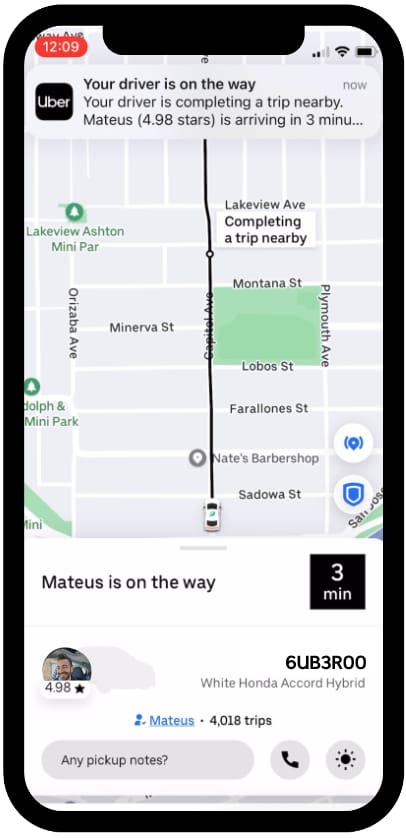
- Use the Uber app to track the vehicle’s arrival.
- When your driver is a few minutes away, head to your pickup location.
- Once your vehicle has arrived, check your ride before getting in: confirm that the license plate number displayed in your app matches the actual vehicle. Drivers will often also ask your name before starting the trip.
- Enjoy your trip. Once your trip ends, you won’t need to worry about payment since your payment method is already linked to your Uber account.
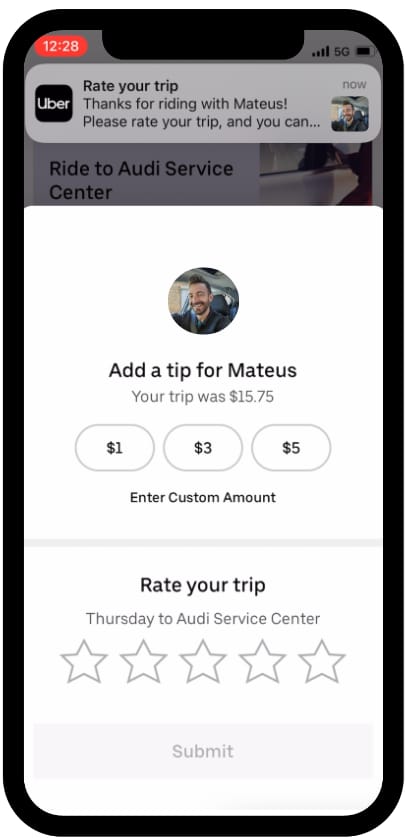
- Let us know how your trip went by rating it. You can also give your driver a compliment or add a tip in the app. Tipping is not required and is not part of your voucher subsidy. If you decide to tip, the amount will be charged to your personal payment method linked to your Uber account.
Get help with a trip
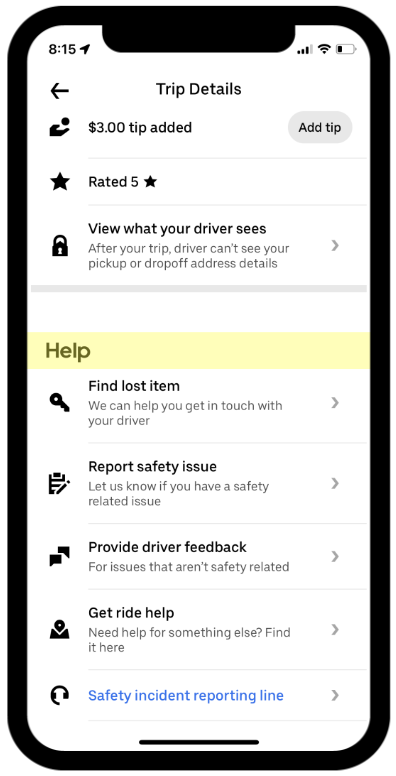
We’re here for you. If you experience something unexpected during your trip, please use the Help feature within the Uber app.
How to access the Help feature:
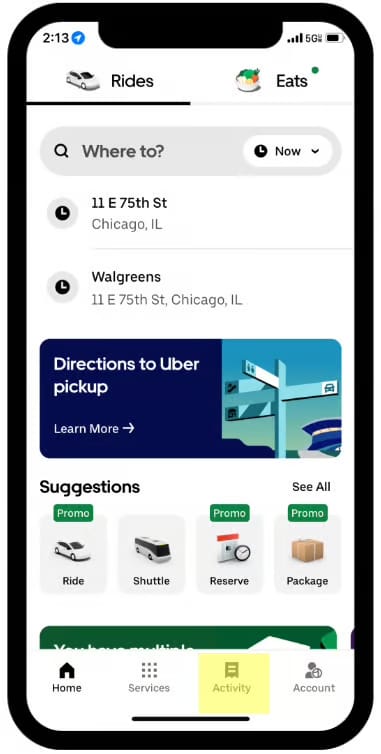
- Open the Uber app and choose Activity at the bottom of the screen
- Select the trip where you experienced an issue
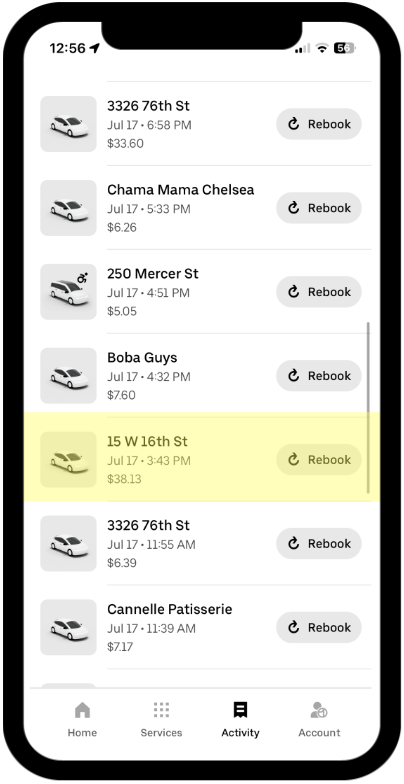
- Scroll down to the Help section to access a variety of support options
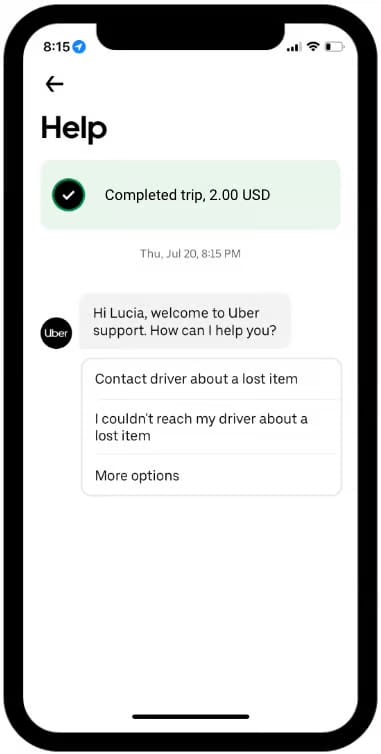
- Select one of the Help options
- Chat with a Support agent to receive help
Saving your voucher for later
If you decide to save your voucher for a later trip and prefer not to use it for a current ride, follow the steps below.
- Locate the voucher associated with the trip at the bottom of the ride option screen and select it.
- On the payment options screen, find the toggle switch related to the voucher.
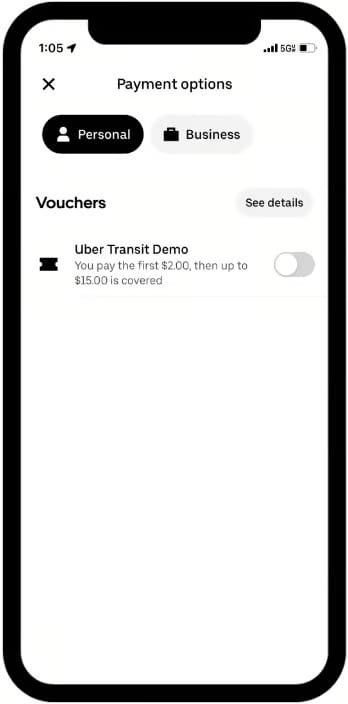
- Switch the toggle to the “off” position by swiping it to the left.
- Then go to the top of the payment options screen and choose the “X” at the top left to return to the ride-request screen.
- By switching off the toggle, the voucher will no longer be applied to the trip. As a result, you’ll be shown standard market pricing, and the entire cost of the trip will be charged to your personal payment method linked to your Uber account.

Frequently asked questions
Posted by Uber Transit